Showing posts with label Geekese Series. Show all posts

Friday, February 10, 2012

Monitors LCD vs LED What's the diff?

Guess what? LED refers to what backlight is used to light up the LCD. LCD refers to Liquid Crystal Diode. LED refers to Light Emitting Diode.  Liquid Crystal Diodes don't emit any light. LED's do. Florescent lighting was the main way of backlighting LCD's. Now, it is being superseded by LED's .It is kind of a misnomer, misdirection, misadvertising or marketing strategy. Whatever you want to call it. When you see a monitor or TV called LED TV, it still is a LCD with LEDs used for lighting the LCD.


This is the Hewlett Packard L2105tm touch screen monitor. Speakers are included but you can over-ride them.  $299.99 List, $279.99 Newegg, $260.99 Amazon. LED.


This is the Samsung B2430H Monitor. It doesn't have speakers. Nor is it touch screen. So $331.00 List, $ $209.99 Newegg, $209.99 Amazon. LCD.

As I said before, LCD is the actual screen. What lights it up are the LED's or Florescent light bulbs. Oh, and plasma screens? Well, hehehe, the light in a Florescent tube is referred to as PLASMA. It again is a misnomer, misdirection, misadvertising or marketing strategy. I know, I know. It kinda takes the fun out of it, but still......

Next up: My buys for my new computer. With prices, pictures and everything!

Friday, January 20, 2012

MotherBoard Out Puts. Also known as headers.

Hello.

Today, I am going to show you my final choice for a mother board.

The ASROCK Z68 Extreme4 Gen3


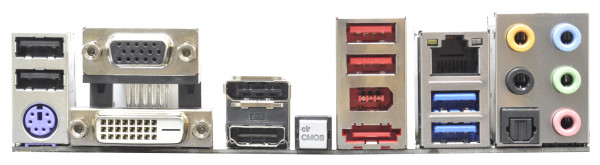
As you can see, the I/O back panel is slightly different than the last one.

It has the addition of 4 onboard display out puts. It loses the mouse connector and the SPDIF coax. It retains the SPDIF optical. It loses two USB 2.0 ports. It retains two USB 3.0 ports. With it's Z68 chipset, also known as onboard graphics, it combines the ability to use discreet video/graphics cards with  technology on the board. Another way of putting it, it works well in the gaming world and also in the video realm as well. With a screamer of a Central Processing Unit, it will be fast.

Part of the reason I chose this one is not having to have a graphics card. They range from $200 to $4000 a piece. The ones I have picked out are $250 a piece. Oh, and I am going to have two of them. That is a subject for another column.

My experience with graphics cards is that they burn up easily.  Hopefully it is because I didn't have enough air pushing through my computer case. We'll see.

This is the mother board. Under the V8 sign is the Z68 chipset. It is the part that controls onboard video and graphics out puts.

Now, I could spend all your time explaining every single header that shows up on the left side, but it won't mean anything to you until you install one. Suffice it to say that headers are the way that you get that USB port working on your front panel. It also has IEEE 1395, an on/off switch, reset switch, hard drive working and a couple of other things that an installer would need to put this thing together. You as a user generally don't need to know where or why these things are here. It is nice to know how some of it works. As an installer, it is necessary to understand what each header does.  For installers and repair people, there is Dr Debug. On the left of the picture, you see a two digit led light. It gives up what is wrong with your motherboard.

On the bottom, there are the various SATA ports, The black are the SATA 2 ports and the grey are the faster SATA 3 ports. Next is the 24 pin main plug in from the power supply. If you happen to see three pins sticking out by their lonesome, they are for the fans, either the front, top or rear fans. There is even a fan for the CPU.

The four parallel sockets close together on the bottom are for memory. On the right, near the top is an 8 pin power for the CPU. In the center, near the top is a 4 pin legacy power needed for SLI technology. It seems that a boost of energy is needed when putting more than one graphics card on board.


Next up: Computer Cases. Why is it so important to keep things as cool as possible. A well designed case shows why. Or, Graphics Cards. Why two are better than one.

Tuesday, January 17, 2012

Motherboard Pictures with English Translations


Hello again. I am starting with the In/Out panel of an ASROCK P67 Extreme 4 Gen 3. Why the back I/O panel? Well, prior to my current research, I had assumed that most computers would have a mouse port, a keyboard port and a Local Area Network as well as a modem. Imagine my chagrin when that just isn't so. Now, it also has specialized ports for audio and visual. Mulitple Universal Serial Bus ports.  Some even come with VGA, HDMI and DIV ports. Basically there is only so much room for a standard size back panel and you just can't everything in there, so there are trade offs. The I/O port can tell you much. I will get into that at the end, but if you can read between the lines, you will understand before I get to it.

With every one and his cousin's business using USB, sometimes there is no mouse input or keyboard input. There is usually at least one LAN. No modems. IEEE ports and SPDIF ports are usually there. And there is a new addition. USB 3.0 ports. Whew! Oh, I almost forgot. Some even have eSATA3 connector. Now, to the average Geek and people who have a passing knowledge of Geekese, this shouldn't come as a surprise. 

To me and to some people who really don't look at the back panel of their computer, it is huge surprise.


Typical I/O Panel for Desktop Computers.
This  panel is typical in that it has standard hookups for almost every thing needed to be hooked up. It isn't on every mother board. 

Going from the left to the right.

Mouse Input. This is a PS2 mouse input. Not always necessary since most mice have USB connectors. In fact it is now hard to find a specific mouse with a PS2 connector. 

PS2 Keyboard input. This is a PS2 keyboard input. Again not always necessary since most keyboards now have USB connectors. Gaming enthusiasts prefer motherboards with a PS2 connector. 

Clear CMOS Switch. It is used to clear the CMOS.....What it does is set all CMOS circuitry to zero. We aren't talking about ROM (Read Only Memory which is needed when starting up the computer.) We are talking about RAM and certain registers in the CPU. It helps when the computer gets stuck in some endless cycle and you wish to break it before you break the computer with a sledge hammer. 

Optical SPDIF and Coaxial SPDIF ports. Sony Phillips Digital Interfaces are more for the ones who don't have an HDMI connector to their home entertainment systems and also for those who are Geeky enough to want some thing different.

USB 2.0 ports, Basically a port to hook up Kindles, Ipods, Iphones, Ipads, Game controllers, and what not.
USB 3.0 ports. Same thing as USB 2.0 and USB 1.1 ports only faster. USB 2 components and below can be plugged into a USB 3.0 ports. USB 3.0 components can NOT be plugged into USB 2 and below ports. Guess what? Your XBOX controller can be plugged into this connector. Cool hunh? 

Local Area Network. Also known as Ethernet. It is the connection to router or modem. It also allows interconnections to other computers on the Local Area Network. LAN for short. 

IEEE 1394 port Basically an Apple design which is better and faster than USB. The problem is that for every 1394 port there is a fee to be paid to the originator. Usually there is only one on the I/O panel while there are 6 USB 2.0 ports and 2 USB 3.0 ports on this one.  

eSATA3 connector. The small e stands for external. Serial Advanced Technology Attachment is a hookup to a hard drive,  optical (DVD,CD, BLU-Ray) drive and solid state drive. It features hot-swap. That is, you can change hard drives while the computer is still running. Why do that? Well if you get a RAID setup...... and you understand Geekese thoroughly you will need to know that. In other words, that is a whole 'nother column. 

Last but not least, the audio for your speakers. Now you can have several different types of set ups. This is also set up to make surround sound possible from your computer. The days of just beep beep for your computer are long gone. You can have a set up that rivals some home entertainment. 

This Motherboard is considered a Gaming Board. Why? Well, it has no video output and it has a dedicated PS2 keyboard input. Gaming enthusiasts prefer PS2 keyboards and to select their video cards. Why PS2? Well that is for later. 

Microsoft has decided in it's vast infinite wisdom to forego any more drivers for PS/2 keyboards and mouses in Windows 8. I think it will back fire on them, since gaming enthusiasts prefer the discrete circuitry for just the keyboard. 

Next up: The Mother Board and the outputs in Geekese translated to English.

Monday, January 16, 2012

MotherBoards with English Translations.

Hello again. Yep, I have done my research. I looked high and low for them. Do you know what I found out? There are eleventy-billion of em out there. Sheesh. More every day. What to do, what to do? Wait a second!! I read and heard some where that there are two major styles of computers that are non-Apple.

It has to do with the Computer Processing Unit socket. Hmmmm. AMD and Intel have their own styles and those two companies come up time and again.

AMD must be a strong company to be challenging Intel. Intel has been around since the beginning and they are constantly innovating and getting speedier. But there is a trade off. AMD is far more concerned with stability and affordable pricing. They are not as speedy as Intel, but they are reliable and the sockets don't change year to year.

Whoa, sockets!.... hmmm, yep sockets! AMD mostly stays with the same style socket each year but gets the chip itself speedier. Intel changes sockets well about as fast as GEEKS change socks. errr. maybe not. Well, suffice it to say, Intel has many Computer Processing Units with many major changes in sockets. Sometimes major changes in the same year. The ones I looked at have at least three four different sockets. An 1155, 1156, 1366 and 2011.

Just google AMD vs Intel. You will find that most of them gush and giggle about Intel. AMD actually is comparable. Just that more people have been using Intel and brand loyalty and brand recognition is involved. I am going with Intel btw. Not because of brand loyalty. I want to upgrade later to an Ivy Bridge CPU and find out what that is all about. IVY BRIDGE? you wonder. Whups, I got into a little geek gagglegook and Ivy bridge is what Intel is bringing out later this year. It is a newer style.

Intel came out last year with IVY Bridge but haven't sold it. IVY Bridge is actually a name of a bridge in Scotland. Sandy Bridge is a name of a place in Tennessee. They are also  names of internal architecture of processors. It is similar to the way K cars became so popular. Chrysler used to name their cars after letters prior to selling them. When Lee Iacoccoa took over Chrysler, the K car was about ready to be revealed. Well, I guess it was a slow news cycle, and journalists didn't want to report about how well Reagan was doing so they reported about Chrysler's K car. When they actually came out with it, the "K" was no where to be found on the car. People didn't buy it and were waiting for the "K" cars. Well, they came out with the car with a New emblem that had "K" on it. It sold. I suspect this is the same thing with "Sandy Bridge" and "IVY Bridge." There are differences which are way beyond the comprehension of me. At least I haven't been able to decipher the Geekese, but eventually I will.

Still, I decided early on that I wanted SPEED!! The last computer I had, was nice, but I couldn't upgrade and I could never get any speed out of it. I experienced the dreaded blue screen of death time and again. Yet my computer still worked, just not with the speed nor with various graphics cards I had installed nor the games that I wanted to play with.   It gave up the ghost and died last year. May it rest in peace. I STILL WANT SPEED.

Intel promises speed and most of the speed demon geeks are using Intel. I will too. AMD is perfectly fine though. The processes to select my mother board are similar for AMD so there is little problem with using my method. Or you can use your own. No problem.

Well, what have we found out? That there are several different CPU's, and motherboards out there. There are several different sockets. Speed is a factor, but highest speeds are very costly.

Next up: Computer motherboard pictures with explanations in English.

Sunday, January 15, 2012

Computer Geekese isn't easy to understand.

I know. I have been out of the loop for a while and I am getting back into it and I am finding myself going hunh? every few minutes or so when I start to read what they are saying. Also, when I hear another builder say, "Do your research on what you want, then buy." I be screaming. Yes, I know that research is good. Yes, it has helped, but seriously, computer builders have this body of knowledge that is locked up inside them ready to pour out. The only problem is it comes out in Geekese. That is, only another builder or Geek can translate, usually to a budding Geek. When they say, do your research, they really mean, "I can't stand here and give you the benefit of my superior knowledge because I have no control over it. It comes out as Geekese even when speaking slowly and plainly."

Well, I am going to build a computer. I have done it before professionally and I KNOW I can do it now. If I start spouting Geekese, I have a beautiful wife to set me straight.

Well, to start. Yes. Research. The man says research. Well, I am going to do research and I am going to post it down. Including any buys that I get. At the end, I will build my computer and present it to the world. Hopefully it will be very fast and cool looking.

In this series of posts, I will be dealing with desktop computers. I don't really have anything against lap tops, just that they aren't for me. At least not yet.

Any superficial look at computers from the eighties to now, comes up with two or three things.

First:

      A simple desktop computer comes with computer in a box, a keyboard and mouse, and a monitor.

Second:

      Everything varies from that point on.

Third:

      The internet arrived. Not to be confused with the Local Area Network. (aka LAN).


I will take each one on individually and explain the crucial differences as I go.

As I said in the earlier post, I do not claim and will never claim that I am the end-all, be-all  GURU of computers. I am tech-savvy in that I can identify parts and put together a computer. As for being a GURU, I am at a lost several times a day when I am dealing with computers. I am not a GURU.

Now, on to the research!!

Next Post: Mother-Boards with English translations.


Saturday, January 14, 2012

Quick List to figure out what computer geekese is being thrown about.

This is my first computer geek post, bear with me.


This post is also by no means meant as the end all be all for geekese. It is merely the start from which you can start to puzzle out certain phrases like:

"Vostro 1000 running XP Home Edition SP3 with an AMD Turion 64 Mobile"


First there are only two MAJOR computer processors on the market today. That thins things down quite a bit doesn't it?


AMD and INTEL.


AMD for the more staid computers. 


INTEL for the more racier computers. 


Staid and racier refer to the speediness of the computer. What did you think it meant?

"Vostro 1000 running XP Home Edition SP3 with an AMD Turion 64 Mobile"


With our example it shows that he is using an AMD Turion 64 Mobile.

If you google 'AMD Turion 64 Mobile", you will find that it is a processor used mainly in lap tops. You know that it is "staid", that is for slower computers. 


Most of you will only encounter people who use windows, so I will address that here. Apple users are a whole 'nother animal. You are on your own. Good luck.


Windows is characterized by the designation after Windows. Like Windows 98 is referred to as 98. Home and business edition, whether it costs you more for slight additions, and what service pack that Microsoft has given it. Sort of how many times have they made major revisions. Windows progression so far is. Windows, 95, 98, XP, VISTA, 7, 8.


Going back to our example:

"Vostro 1000 running XP Home Edition SP3 with an AMD Turion 64 Mobile" 


He is using Windows XP, Home Edition Service Pack 3. The fourth interation of Windows, with home, not business, edition, and service pack 3 which means that he will have to upgrade if Microsoft decides that the latest technology belongs in the latest version of windows and "We just can't positively work with operating systems earlier than Vista." IE: We need more money. 

Second thing about Windows is the level of with which it works. It either is a 32 bit system, or  64 bit system. Most of the time and with most of people's situation, a 32 bit operating system is fine and dandy. 99% of the time, you won't notice nor care whether it is 32 or 64. It is only when you get into compatiblity of software to printers, certain computer games, high number crunching and other similar things that you start to  encounter a problem with a 32 bit operating system. You also might encounter the reverse where a printer won't work with a 64 bit operating system. He didn't specify which level he is using so it doesn't matter to him whether he is using 32 or 64 bit.

Going back to our example: 

"Vostro 1000 running XP Home Edition SP3 with an AMD Turion 64 Mobile" 

The google return on 'Vostro 1000' tells us that it is a Dell lap top. Nice to confirm that it is a lap top.

Putting it all together, 

He is owns a Dell Lap Top, utilizing Windows Version XP with the Service Pack 3, and has an upgraded computer processor, AMD Turion 64 Mobile.

Now this doesn't even touch how much memory he has, nor any other upgrades. But it does start you on the path of deciphering when geekease starts flying about.

One more thing, this simple phrase is necessary when you talk to a geek about your computer problem. To find out your information, go to START, right click on Computer or My Computer, click on Properties and voila. All the information that annoying geek person wants prior to even listening to your complaint. If I were you, I would write it down and keep the cheat sheet in a safe spot. Your computer might  be a smouldering pile of rubble, but the geek will still need it. 

For your first phrase, here is my computer.

HP m8200n, running 32 OS, VISTA, HE SP2, 4.0 GB, with INTEL core2 quad cpu q8200.

I added 32 bit operating system, and the amount of memory, I am using.  4.0 GB.  otherwise, you can puzzle this one out.